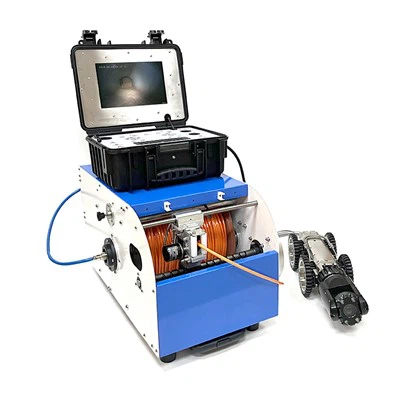
Hey there! As a supplier of CCTV pipe crawler robots, I often get asked about how to connect these nifty machines to a computer for data analysis. It's a crucial step in getting the most out of your pipe inspection process, so I'm gonna break it down for you in this blog.
First off, let's talk about why connecting your CCTV pipe crawler robot to a computer is so important. When you're using a CCTV Crawler Camera to inspect pipes, you're collecting a ton of data. This data can include video footage of the inside of the pipes, measurements of pipe diameter, and information about any defects or blockages. By connecting the robot to a computer, you can analyze this data more effectively, spot trends, and make informed decisions about pipe maintenance and repair.
Now, let's get into the nitty-gritty of how to connect your CCTV pipe crawler robot to a computer. The process can vary depending on the specific model of the robot and the computer you're using, but here are the general steps:


Step 1: Check the Compatibility
Before you start trying to connect your robot to the computer, you need to make sure they're compatible. Most modern CCTV pipe crawler robots use standard interfaces like USB or Ethernet to connect to a computer. Check the user manual of your robot to see what type of connection it supports, and make sure your computer has the corresponding ports.
Step 2: Gather the Necessary Equipment
You'll need a few things to connect your robot to the computer. This usually includes a cable (either USB or Ethernet, depending on the robot), and possibly a power adapter if the robot requires external power. Make sure you have all the necessary equipment on hand before you start.
Step 3: Connect the Robot to the Computer
Once you've checked the compatibility and gathered the equipment, it's time to make the connection. Plug one end of the cable into the robot and the other end into the computer. If you're using a USB cable, it should be as simple as plugging it in. If you're using an Ethernet cable, you may need to configure the network settings on your computer to connect to the robot.
Step 4: Install the Software
Most CCTV pipe crawler robots come with software that you need to install on your computer to analyze the data. This software allows you to view the video footage, take measurements, and generate reports. Follow the instructions in the user manual to install the software on your computer.
Step 5: Configure the Settings
After installing the software, you'll need to configure the settings to match your robot. This may include setting the resolution of the video, adjusting the lighting, and calibrating the measurements. Refer to the user manual for detailed instructions on how to configure the settings.
Step 6: Start Analyzing the Data
Once you've connected the robot to the computer and configured the settings, you're ready to start analyzing the data. Use the software to view the video footage, take measurements, and generate reports. You can also save the data for future reference or share it with other team members.
Tips and Tricks
- Keep the cable tidy: Make sure the cable connecting the robot to the computer is properly managed to avoid tangles and damage.
- Update the software regularly: Check for software updates regularly to ensure you have the latest features and bug fixes.
- Back up your data: It's a good idea to back up the data you collect from the robot to prevent loss in case of a computer failure.
Troubleshooting
If you're having trouble connecting your robot to the computer, here are some common issues and solutions:
- No connection: Check the cable to make sure it's properly plugged in. Try using a different cable or port on the computer.
- Software not working: Make sure you've installed the software correctly and that it's compatible with your computer. Try reinstalling the software.
- Video quality issues: Check the settings on the robot and the software to make sure the video resolution and lighting are set correctly.
In conclusion, connecting a CCTV pipe crawler robot to a computer for data analysis is a relatively straightforward process. By following the steps outlined in this blog, you can ensure that you're getting the most out of your pipe inspection process. If you have any questions or need further assistance, don't hesitate to reach out. We're here to help you make the most of your Robotic Crawler Pipe Inspection System.
If you're in the market for a CCTV pipe crawler robot, we've got a great selection of Sewer Inspection Crawler options. Whether you're a professional plumber, a utility company, or just someone looking to inspect their own pipes, we've got the right solution for you. Get in touch with us to discuss your specific needs and let's start exploring the possibilities together.
References:
- User manuals of CCTV pipe crawler robots
- Technical documentation of related software