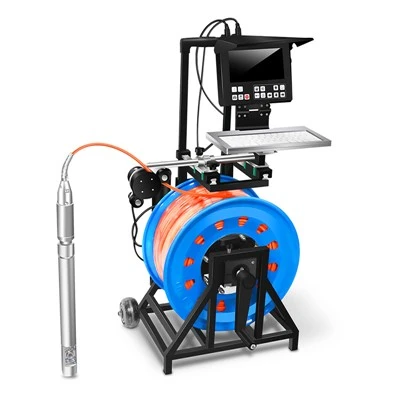
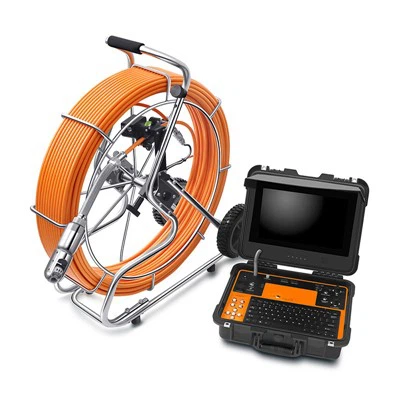
As a supplier of Pipe Camera Locators, I understand that many users may encounter difficulties when it comes to downloading recorded videos from these devices. In this blog post, I will provide a detailed guide on how to download the recorded videos from a Pipe Camera Locator, ensuring that you can easily access and manage your inspection footage.
Understanding the Pipe Camera Locator
Before we delve into the downloading process, it's essential to have a basic understanding of the Pipe Camera Locator. A Pipe Camera Locator is a specialized tool used for inspecting the interior of pipes, drains, and other underground utilities. It consists of a camera head, a flexible cable, and a control unit. The camera head is equipped with a high-resolution camera that captures real-time video footage of the pipe's interior, which can be viewed on the control unit's display.
The recorded videos are stored on the device's internal memory or an external storage device, such as a SD card. Depending on the model of the Pipe Camera Locator, the storage capacity may vary. Some models can store several hours of video footage, while others may have limited storage space.
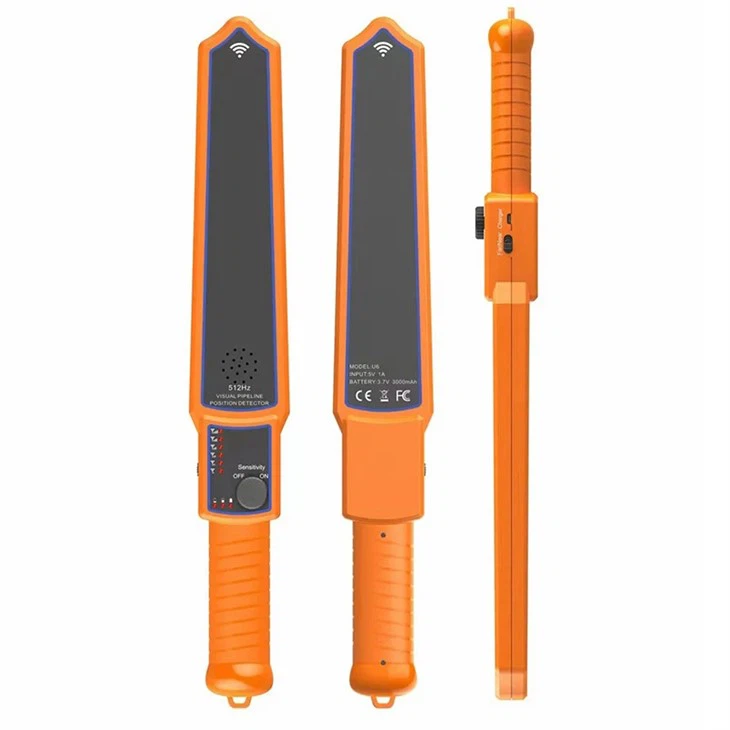
Preparing for the Download
Before you start downloading the recorded videos, you need to ensure that you have the necessary equipment and software. Here's what you'll need:
- Pipe Camera Locator: Make sure that your Pipe Camera Locator is fully charged and has the recorded videos stored on its internal memory or an external storage device.
- Computer: You'll need a computer with a USB port or a card reader. The computer should be running a compatible operating system, such as Windows, Mac OS, or Linux.
- USB Cable or SD Card Reader: Depending on the model of your Pipe Camera Locator, you may need a USB cable to connect the device to your computer or a SD card reader to access the external storage device.
- Video Playback Software: You'll need video playback software installed on your computer to view the downloaded videos. Popular video playback software includes VLC Media Player, Windows Media Player, and QuickTime Player.
Downloading the Recorded Videos
Once you have all the necessary equipment and software, you can start downloading the recorded videos from your Pipe Camera Locator. Here's a step-by-step guide:
- Connect the Pipe Camera Locator to your computer: If your Pipe Camera Locator has a USB port, connect it to your computer using a USB cable. If your device uses an external storage device, such as a SD card, remove the SD card from the device and insert it into a SD card reader connected to your computer.
- Access the storage device: Once the Pipe Camera Locator is connected to your computer, your computer should recognize the storage device. Open the "My Computer" or "This PC" folder on your computer and locate the storage device. It may be listed as a removable disk or a USB drive.
- Locate the recorded videos: Open the storage device and navigate to the folder where the recorded videos are stored. The folder name may vary depending on the model of your Pipe Camera Locator. Look for folders with names like "Videos," "Recordings," or "Footage."
- Select the videos you want to download: Once you've located the folder with the recorded videos, select the videos you want to download. You can select multiple videos by holding down the "Ctrl" key (Windows) or the "Command" key (Mac) while clicking on the videos.
- Copy the videos to your computer: Right-click on the selected videos and choose the "Copy" option. Then, navigate to the folder on your computer where you want to save the videos and right-click inside the folder and choose the "Paste" option. The videos will be copied from the storage device to your computer.
- Disconnect the Pipe Camera Locator from your computer: Once the videos have been successfully copied to your computer, safely disconnect the Pipe Camera Locator from your computer. If you used a SD card, remove it from the SD card reader.
Troubleshooting Tips
If you encounter any issues while downloading the recorded videos from your Pipe Camera Locator, here are some troubleshooting tips:
- Check the connection: Make sure that the Pipe Camera Locator is properly connected to your computer. If you're using a USB cable, try using a different cable or a different USB port on your computer. If you're using a SD card, make sure that it's inserted correctly into the SD card reader.
- Update the device driver: If your computer doesn't recognize the Pipe Camera Locator or the storage device, you may need to update the device driver. You can usually find the latest device driver on the manufacturer's website.
- Check the storage device: If the recorded videos are not showing up on the storage device, make sure that the storage device is not full or corrupted. You can try formatting the storage device to fix any issues.
- Contact the manufacturer: If you're still having trouble downloading the recorded videos, contact the manufacturer of your Pipe Camera Locator for technical support. They may be able to provide you with additional troubleshooting tips or assistance.
Additional Accessories for Pipe Camera Locators
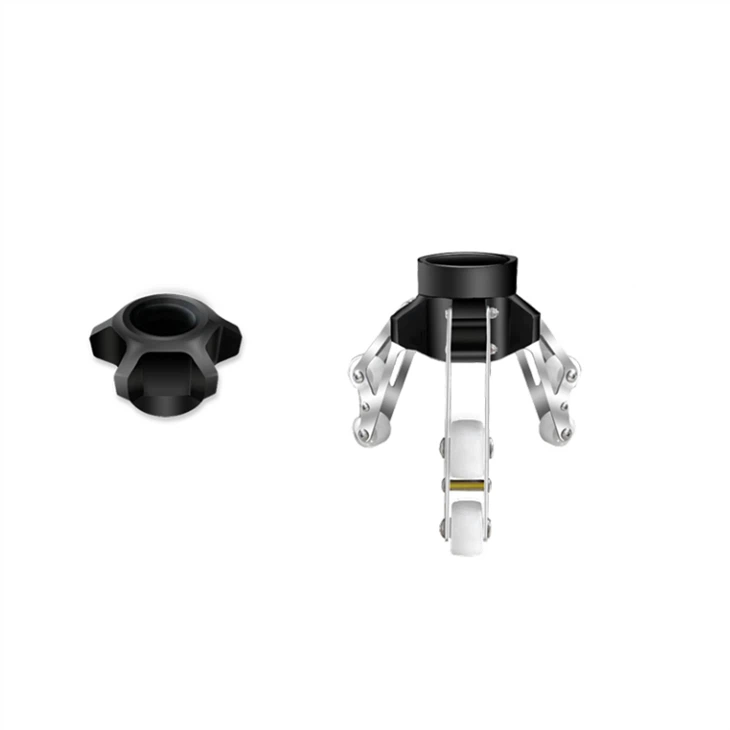
In addition to the Pipe Camera Locator itself, there are several accessories that can enhance its functionality and performance. Two popular accessories are the 45mm Camera Head Skid and the 23mm Camera Head Skid. These skids are designed to protect the camera head and provide better stability and maneuverability when inspecting pipes.
The 45mm Camera Head Skid is suitable for larger pipes, while the 23mm Camera Head Skid is ideal for smaller pipes. Both skids are made of durable materials and are easy to install and remove. They can help extend the lifespan of your Pipe Camera Locator and improve the quality of your inspection footage.
Conclusion
Downloading the recorded videos from a Pipe Camera Locator is a straightforward process that can be completed with a few simple steps. By following the guide outlined in this blog post, you should be able to easily access and manage your inspection footage. If you have any questions or need further assistance, please don't hesitate to contact us. We're here to help you get the most out of your Pipe Camera Locator.
If you're interested in purchasing a Pipe Camera Locator or any of our accessories, we invite you to contact us for more information. Our team of experts can provide you with detailed product specifications, pricing, and assistance with your purchase. We look forward to working with you to meet your pipe inspection needs.
References
- Manufacturer's user manual for the Pipe Camera Locator
- Online resources and forums for pipe inspection equipment