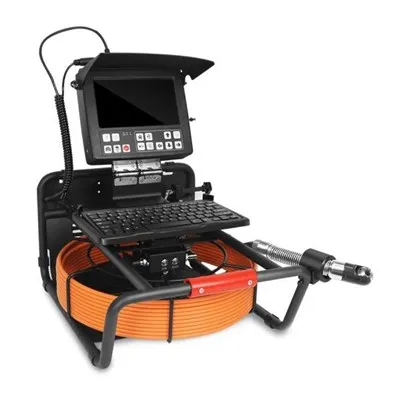
As a supplier of Manhole Inspection Camera, I often receive inquiries from customers about how to connect a manhole inspection camera to a printer. This process might seem complex at first glance, but with the right guidance, it can be accomplished smoothly. In this blog post, I'll walk you through the steps involved in connecting your manhole inspection camera to a printer, ensuring you can easily document your inspection results.
Understanding the Basics
Before we dive into the connection process, it's essential to understand the key components involved. A manhole inspection camera system typically consists of a camera unit, a control unit, and a display screen. The camera is designed to be inserted into manholes or other underground pipes to capture high - resolution images and videos of the interior conditions. On the other hand, a printer is used to generate hard copies of the inspection data, which can be useful for reports, record - keeping, and sharing with clients or regulatory authorities.
Compatibility Check
The first step in connecting your manhole inspection camera to a printer is to ensure compatibility between the two devices. Different cameras and printers support various connection protocols and file formats.


- Connection Protocols: Common connection protocols include USB, Wi - Fi, and Bluetooth. Most modern manhole inspection cameras support USB connections, which are reliable and widely used. Some advanced models also offer Wi - Fi or Bluetooth connectivity, allowing for wireless printing. Check the user manuals of your camera and printer to determine which connection protocols they support.
- File Formats: The camera records inspection data in specific file formats, such as JPEG for images and MP4 for videos. Your printer should be able to handle these file formats. If your printer has limited file format support, you may need to convert the files using appropriate software.
Connecting via USB
If your camera and printer both support USB connections, this is the most straightforward method. Here's how you can do it:
- Prepare the Devices: Ensure that both the manhole inspection camera and the printer are turned off. Connect one end of the USB cable to the USB output port on the camera's control unit. Make sure the cable is securely plugged in.
- Connect to the Printer: Plug the other end of the USB cable into the USB input port on the printer. Some printers may have multiple USB ports; refer to the printer's manual to identify the correct one for data transfer.
- Power On the Devices: Turn on the printer first and wait for it to initialize. Then, power on the manhole inspection camera. The camera should automatically detect the connected printer.
- Select the Print Option: On the camera's control unit, navigate to the menu and find the print option. You can choose to print individual images or a series of images. Select the images you want to print and specify the print settings, such as the number of copies, print quality, and paper size.
- Initiate Printing: Once you've set the print options, press the print button on the camera's control unit. The printer will start printing the selected images.
Connecting via Wi - Fi
If your camera and printer support Wi - Fi connectivity, you can enjoy the convenience of wireless printing. Here are the steps:
- Set Up the Printer's Wi - Fi: First, connect the printer to your local Wi - Fi network. Follow the instructions in the printer's manual to complete the Wi - Fi setup. You may need to enter the Wi - Fi network name (SSID) and password.
- Enable Wi - Fi on the Camera: On the manhole inspection camera's control unit, go to the settings menu and enable the Wi - Fi function. Search for available Wi - Fi networks and select your home or office network. Enter the Wi - Fi password if required.
- Pair the Camera with the Printer: Once the camera is connected to the Wi - Fi network, it needs to be paired with the printer. Some printers have a built - in Wi - Fi direct function, which allows the camera to connect directly to the printer without a router. In other cases, you may need to use a mobile app provided by the printer manufacturer to complete the pairing process.
- Print the Images: After successful pairing, access the print option on the camera's control unit. Select the images you want to print and adjust the print settings. Then, press the print button to start the wireless printing process.
Connecting via Bluetooth
Bluetooth is another wireless option for connecting your manhole inspection camera to a printer. Here's how:
- Enable Bluetooth on the Printer: Turn on the printer and enable its Bluetooth function. Refer to the printer's manual for instructions on how to do this. The printer will enter pairing mode, usually indicated by a blinking Bluetooth icon.
- Enable Bluetooth on the Camera: On the camera's control unit, go to the settings menu and turn on the Bluetooth function. Search for nearby Bluetooth devices.
- Pair the Camera with the Printer: When the printer appears in the list of available Bluetooth devices on the camera, select it to initiate the pairing process. You may need to enter a pairing code, which is usually provided in the printer's manual.
- Print the Inspection Data: Once the pairing is successful, access the print option on the camera. Select the images or videos you want to print and start the printing process.
Troubleshooting
Even with careful preparation, you may encounter some issues during the connection process. Here are some common problems and their solutions:
- Connection Failure: If the camera fails to connect to the printer, check the connection cables to ensure they are properly plugged in. If you're using wireless connection methods, make sure both devices are within the range of the Wi - Fi network or Bluetooth signal. Restart both the camera and the printer and try the connection again.
- Print Quality Issues: Poor print quality can be caused by several factors, such as low - resolution images, incorrect print settings, or a clogged printer nozzle. Check the image resolution and adjust the print settings to a higher quality. If the problem persists, clean the printer nozzle according to the printer's maintenance instructions.
- File Format Compatibility: If the printer cannot recognize the file formats from the camera, use image or video conversion software to convert the files to a compatible format. There are many free conversion tools available online.
Conclusion
Connecting a manhole inspection camera to a printer is a valuable skill that allows you to document your inspection results effectively. Whether you choose to use a USB, Wi - Fi, or Bluetooth connection, following the steps outlined in this blog post will help you achieve a successful connection. As a supplier of Manhole Inspection Camera, I'm committed to providing you with high - quality products and comprehensive support. If you have any further questions about our manhole inspection cameras or need assistance with the connection process, feel free to reach out to us. We're here to help you make the most of your inspection equipment and streamline your workflow.
If you're interested in purchasing our manhole inspection cameras or have any procurement - related inquiries, please don't hesitate to contact us. We look forward to discussing your needs and providing you with the best solutions.
References
- Manufacturer's manuals of manhole inspection cameras and printers.
- Online resources on device connectivity and troubleshooting.